 MyStory
WebApp
Share a story
There are two ways to share a story:
- A link lets anyone who has it read the story - no account needed.
- Collaboration brings MyStory users into the story, to read it or to write it with you.
Send a link
- Open the story and choose Share link (the share sign at the top).
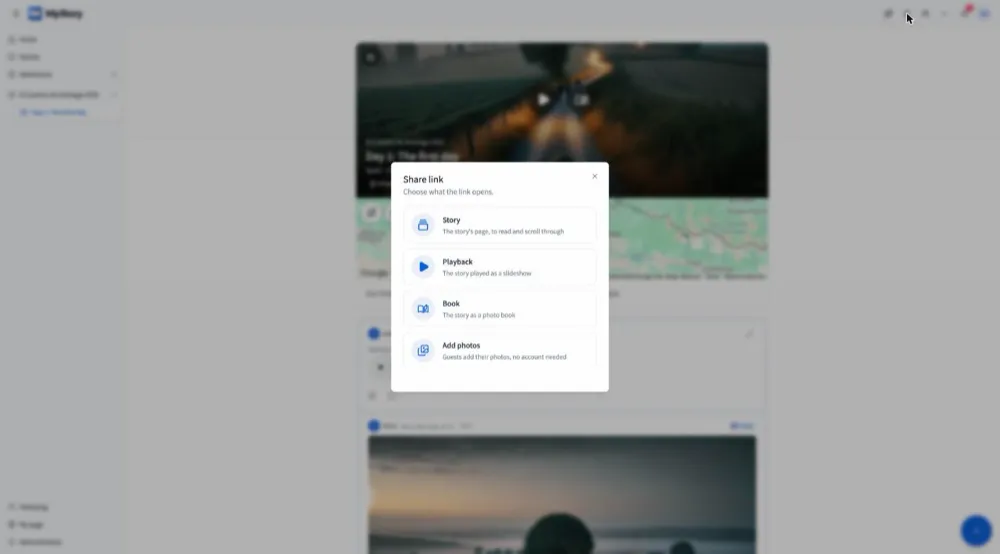
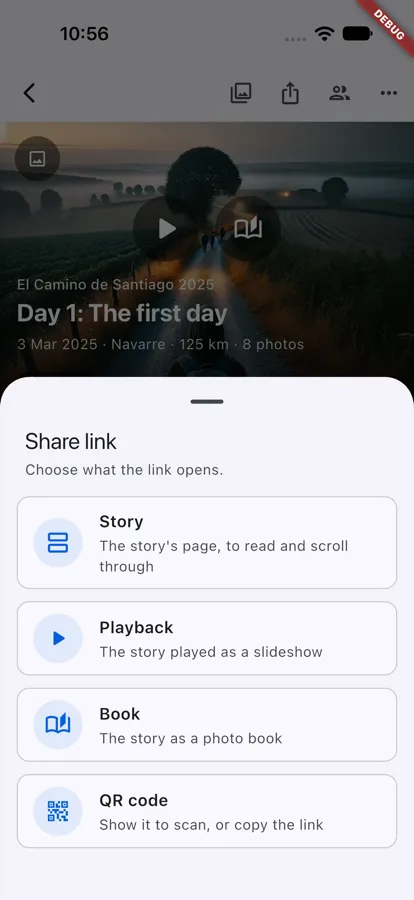
- Choose what the link opens:
- Story - the story’s page, to read and scroll through
- Playback - the story played as a slideshow
- Book - the story as a photo book
- Add photos - guests add their photos to the story (Let guests add photos)
- The link’s QR code opens: show it to scan, Share it (your phone’s share sheet) or copy it. The guest link’s code also has Make a card to print.
The first time you share a private story of yours, it gets its link, and becomes Shared link - MyStory tells you so.
Who can read it
The chip on the story’s cover says who can read it. Tap it to change it:
- Private - only the people in the story
- Shared link - anyone with the link; the story is not listed anywhere
- My page - listed on your My page, for everyone
Remove link stops the link from working and makes the story private again.
Write a story together
- Open the story and choose Collaboration (the people sign at the top).
- Find the person by name, @alias or the email they signed up with, and add them. They join as a contributor.
- Change their role in the list when they should do more or less:
- Viewer - reads, likes and comments
- Contributor - also adds entries, and changes their own
- Editor - also changes any entry, the title and the routes
People in the story can leave it from Collaboration with Leave story.
Good to know
- Only the owner changes who can read a story and who is in it.
- Editors and contributors can pass on the link once the owner has shared the story by link or on My page.
- Your plan sets how many contributors and editors a story can have; Collaboration shows how many are left.