 MyStory
WebAppPlus
Let guests add photos
At a wedding or a birthday, most of the photos are on the guests’ phones. A guest link lets anyone who has it add their photos and videos to your story, with no account. They see only the story’s title, cover and description - not the story itself - and you can remove anything they add.
Turn on the guest link
- Open the story and choose Share link (the share sign at the top).
- Choose Add photos.
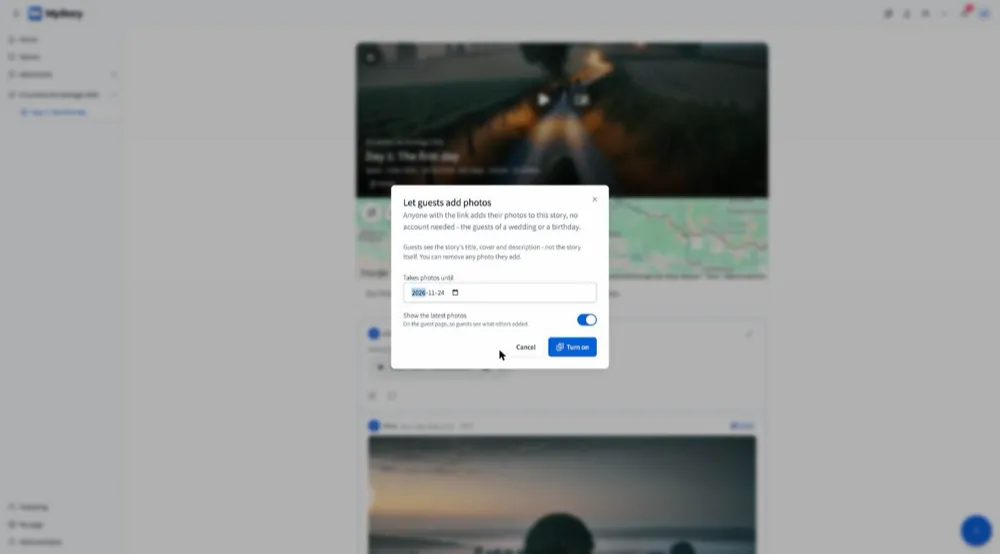
- Choose until when it takes photos - Takes photos until is a month ahead unless you pick another day - and whether the guest page shows the latest photos guests added.
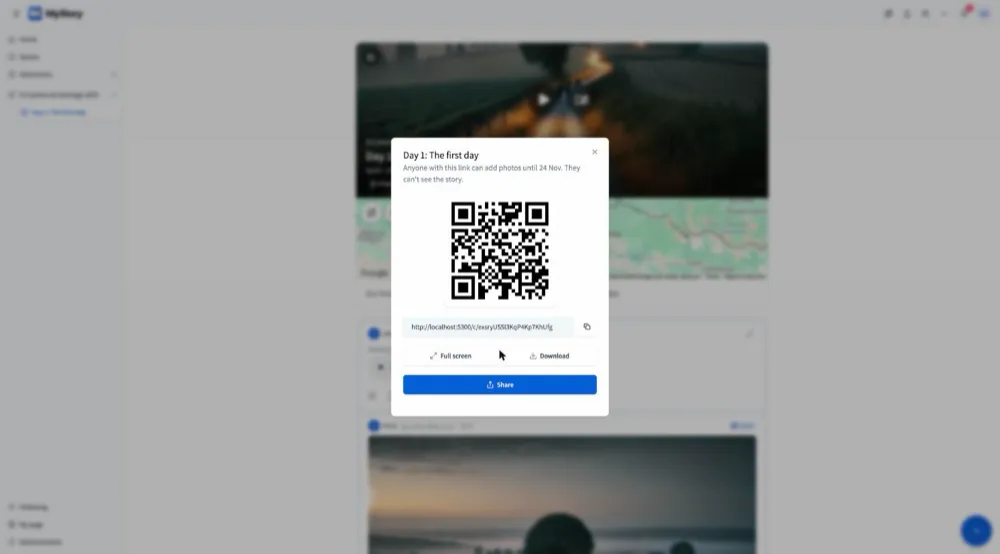
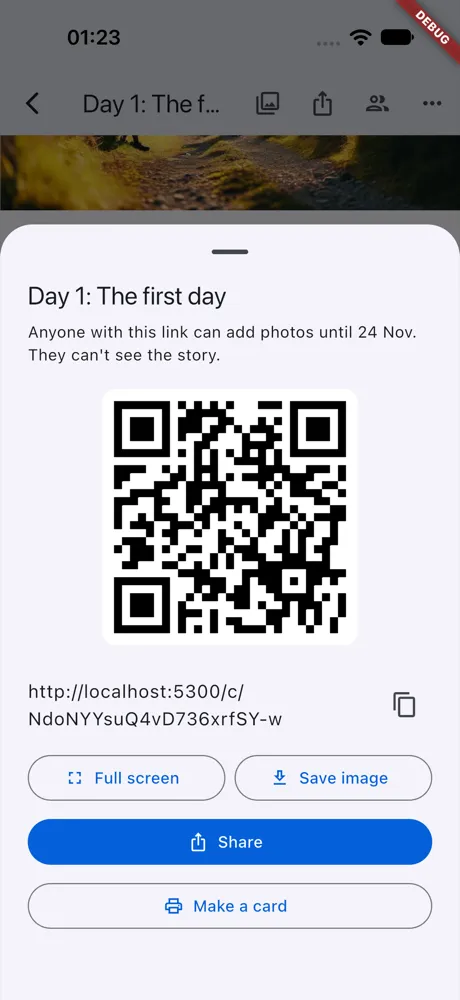
- Choose Turn on. The link’s QR code opens: show it to scan, Share it in a message, or copy it.
Print a card for the tables
- In the guest link’s QR code, choose Make a card.
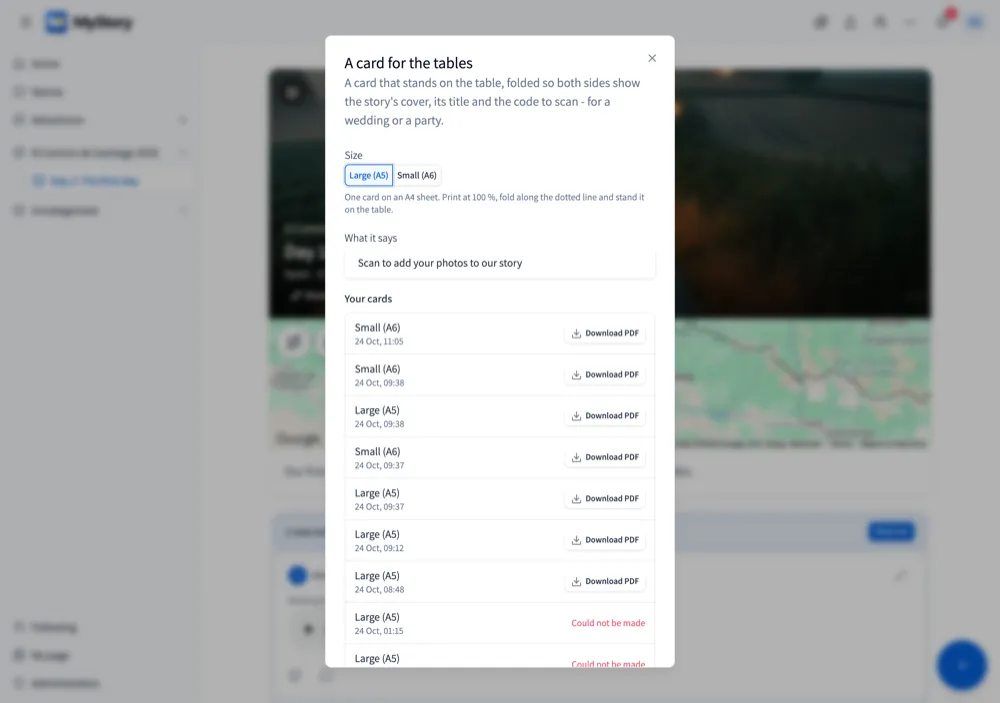
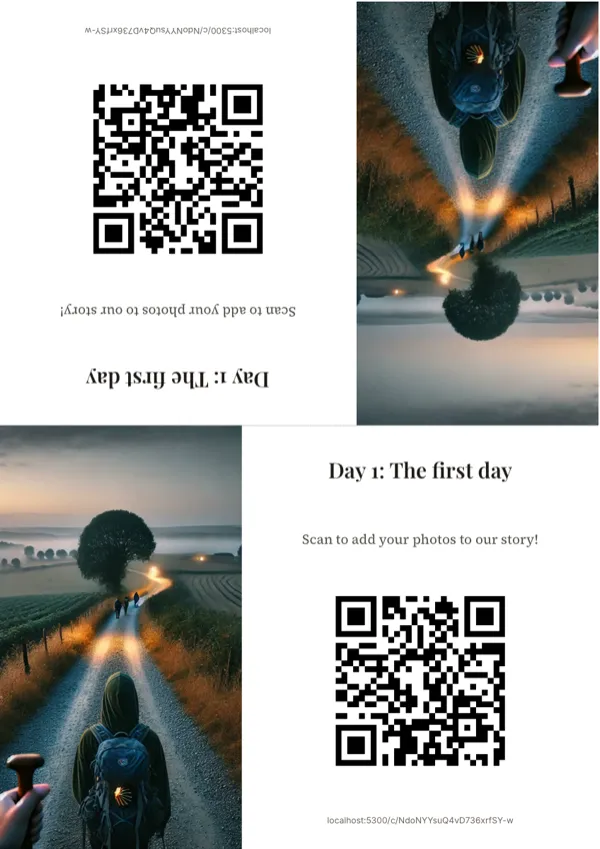
- Choose the size, and what it says (“Scan to add your photos to our story”):
- Large (A5) - one card on an A4 sheet
- Small (A6) - two cards on an A4 sheet
- Choose Make the card. It is made in the background - you can close the dialog. You get a notification (and a line in Activity) when it is ready.
- Open the notification, or Your cards (in the card dialog, or in Collaboration under the guest link), and choose Download PDF. Your cards are kept for a week.
- Print it on A4 at 100 % (not “fit to page”). Small cards: cut the sheet along the dashed line first.
- Fold along the dotted line, with the card outside, and stand it on the table: the card shows on both sides.
The story’s owner, editors and contributors can make one, on the owner’s Plus plan.
See and tidy what guests added
- The photos come into the story at the time they were taken, each with the guest’s name: “Anna (guest)”. Everyone in the story hears of them: “4 guests added 12 photos”.
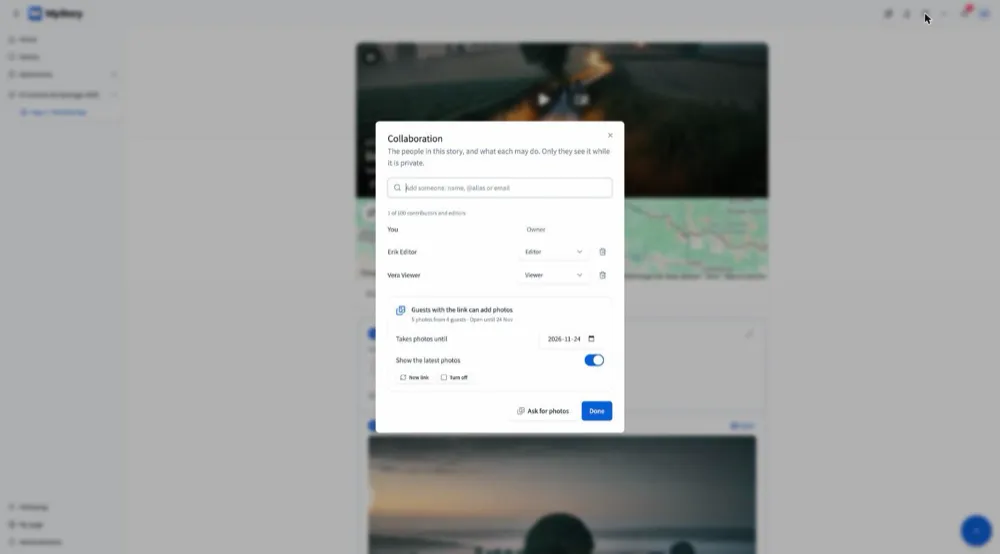
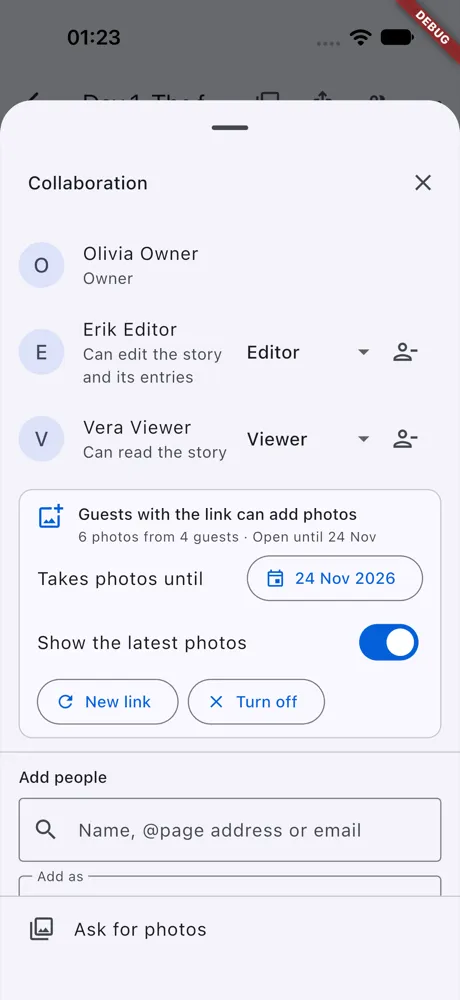
- Collaboration shows the guest link while it is on: how many photos from how many guests, and until when. Move the date there - the address stays, so printed cards keep working - or turn Show the latest photos off.
- In Photos & videos, From guests shows only what guests added: select what you don’t want and Delete it.
Stop it
- Turn off (in Collaboration) - the link stops working. The photos stay.
- New link - a new address; the old link and its QR codes stop working.
- The link stops taking photos on its end date by itself, and when you finish the story. After its end date, Make a new link gives a new address.
Good to know
- Guest links are part of Plus - your plan, as the story’s owner.
- Your editors and contributors can pass the link on while it is open; viewers don’t see it.
- Guests’ photos use your storage and count towards the story’s entries; guests never take the story’s last 50 entries, so you can always add your own.
- One guest can add up to 300 photos a day, and videos of up to 100 MB. A guest’s video is not transcribed by itself - you can transcribe it from its menu.