 MyStory
Sign up and sign in
One MyStory account works on the web and in the app: what you write in one is in the other.
Sign up with your email
- On the sign-in page, choose Sign up (“Don’t have an account? Sign up”).
- Enter your full name, your email and a password twice.
- Tick I accept MyStory’s terms - the link opens them to read first - and choose Sign up.
- Open the mail MyStory sends you and follow its link.
- On the Verify email page, enter the password you signed up with and choose Verify and sign in.
Your account is ready, and you are signed in. MyStory makes the address of your My page from your name; you can change it later in Settings > My page.
Didn’t get the mail? On the sign-in page, sign in with your email and password and choose Send a new verification link. An account that is never verified is deleted after a week.
Accept the terms
When you sign up with Google or Apple, or when MyStory’s terms change, Our terms opens once you are signed in. Choose Read the terms to read them, tick I have read and accept the terms and choose Accept. Until you do, MyStory asks again each time; Sign out leaves without accepting. The terms are also under Settings > Account (Terms and privacy on the web).
Sign in
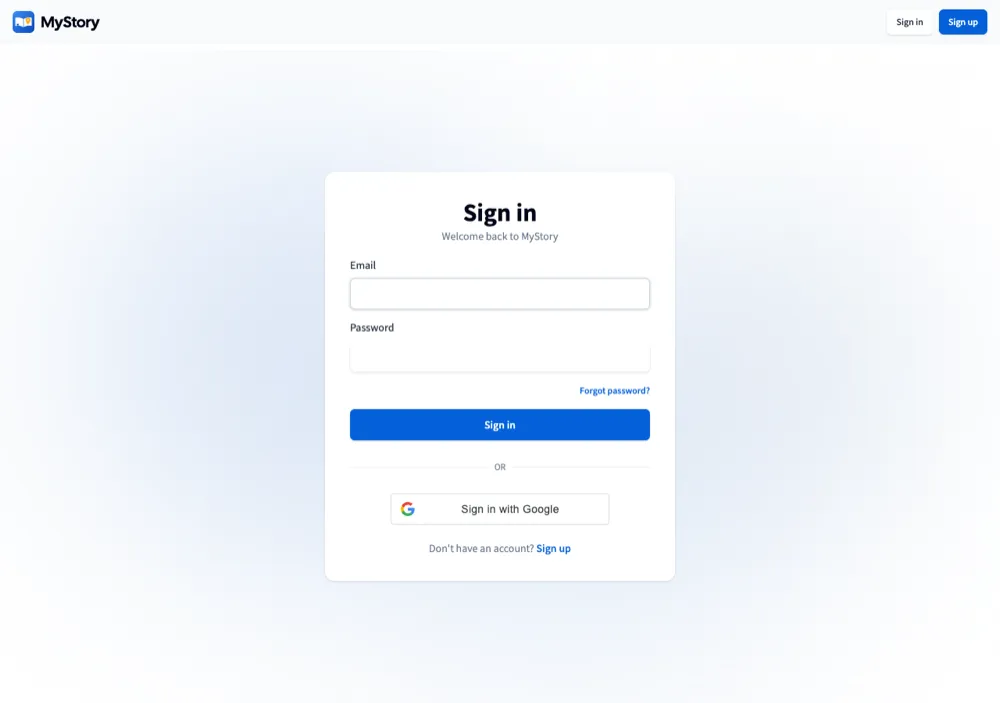
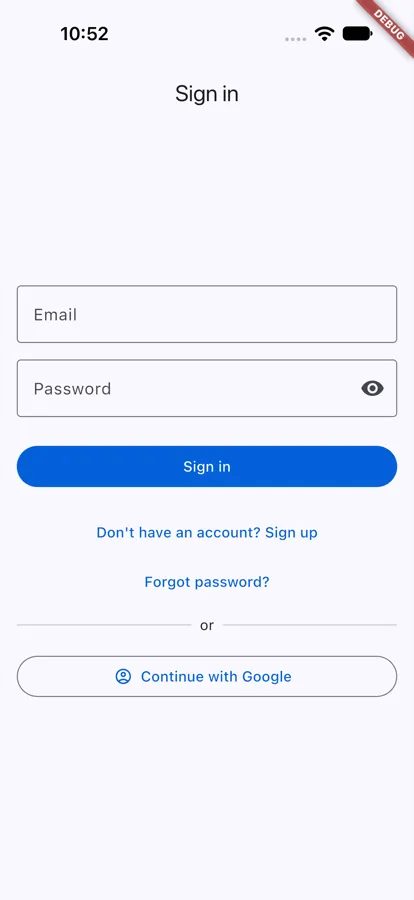
Enter your Email and Password and choose Sign in - or sign in with Google or Apple.
Sign in with Google or Apple
- Sign in with Google (on the web) or Continue with Google (in the app) works on the web and in the app.
- Sign in with Apple works on the web and on iPhone, not on Android.
The first time, MyStory makes your account at once. If you already have an account with the same email, the Google or Apple sign-in opens that account - as long as Google or Apple has checked the email. If you hide your email from Apple (“Hide My Email”), you get an account of its own.
Forgot your password?
- On the sign-in page, choose Forgot password?.
- Enter your email. MyStory sends you a link.
- Follow the link and set a new password. In the app you can also paste the link or the code from the mail.
Good to know
- The app keeps you signed in, also without a connection. You are only signed out when you sign out yourself, or when your session is ended from another device.
- Settings > Account lists every browser and phone signed in to your account, and signs them out.